Remote control, your way.
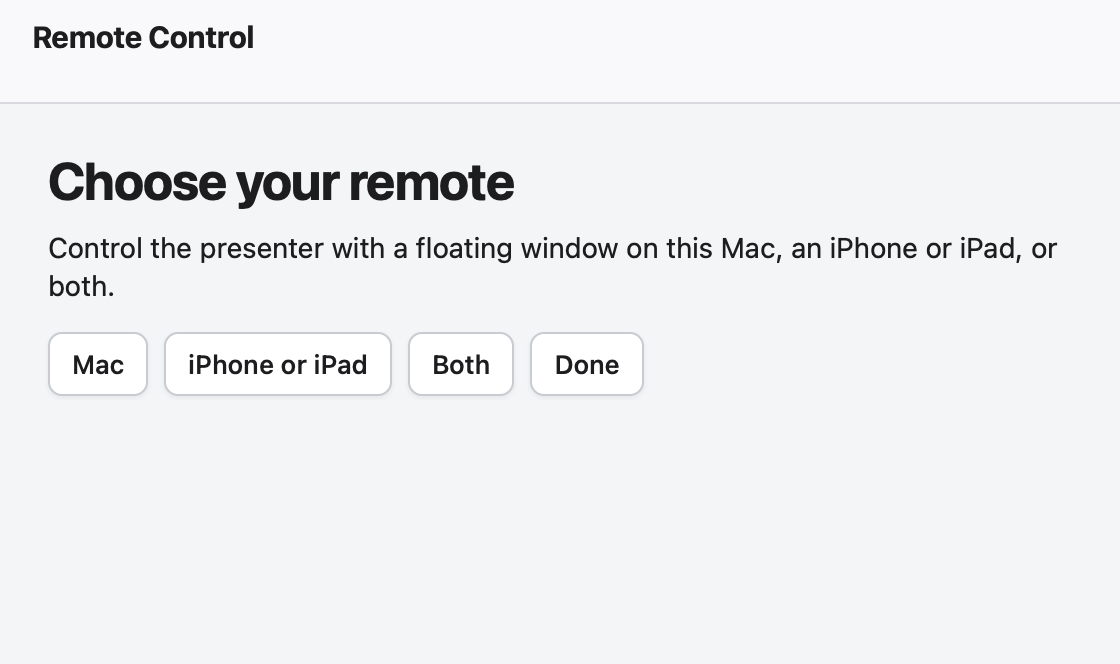
Choose controls on screen, on an iPhone or iPad, or both. Direct setup shows the full address, a QR code, pairing guidance, and a phone or tablet remote with Hover controls.
Features
TalkOver gives you three ways to move through a script, three ways to place it on screen, and local recording tools when you are ready to make a take.
Current release: 1.1.4.50. Local remote controls, clearer stage directions, stronger script preparation, and more control over Hover, recording, and backups.
New in 1.1.4.50
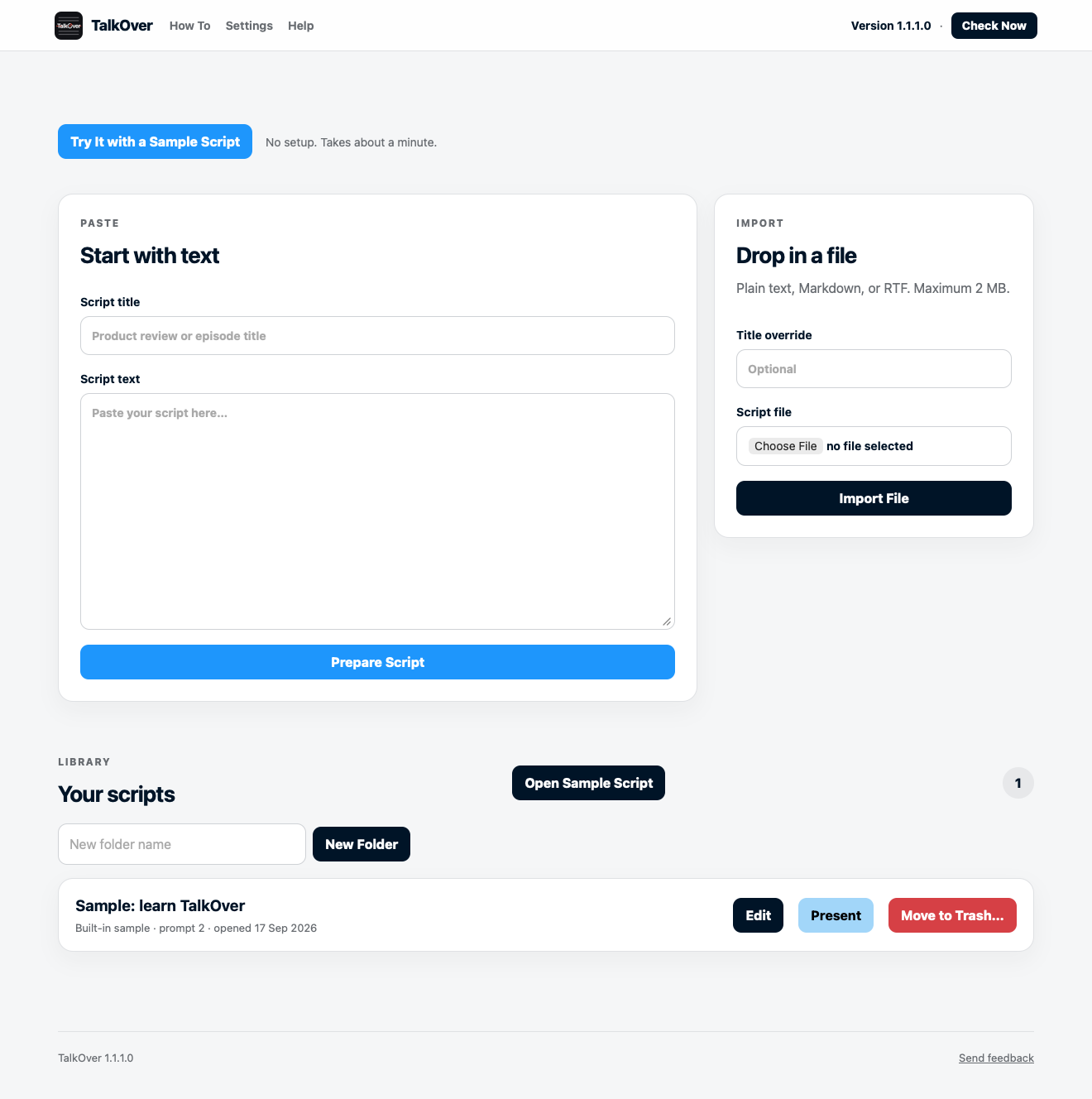
TalkOver 1.1.4.50 adds more ways to control your prompt, prepare scripts, and keep your work recoverable. The images below are native source-run captures of the released interface using disposable sample data.
Choose controls on screen, on an iPhone or iPad, or both. Direct setup shows the full address, a QR code, pairing guidance, and a phone or tablet remote with Hover controls.
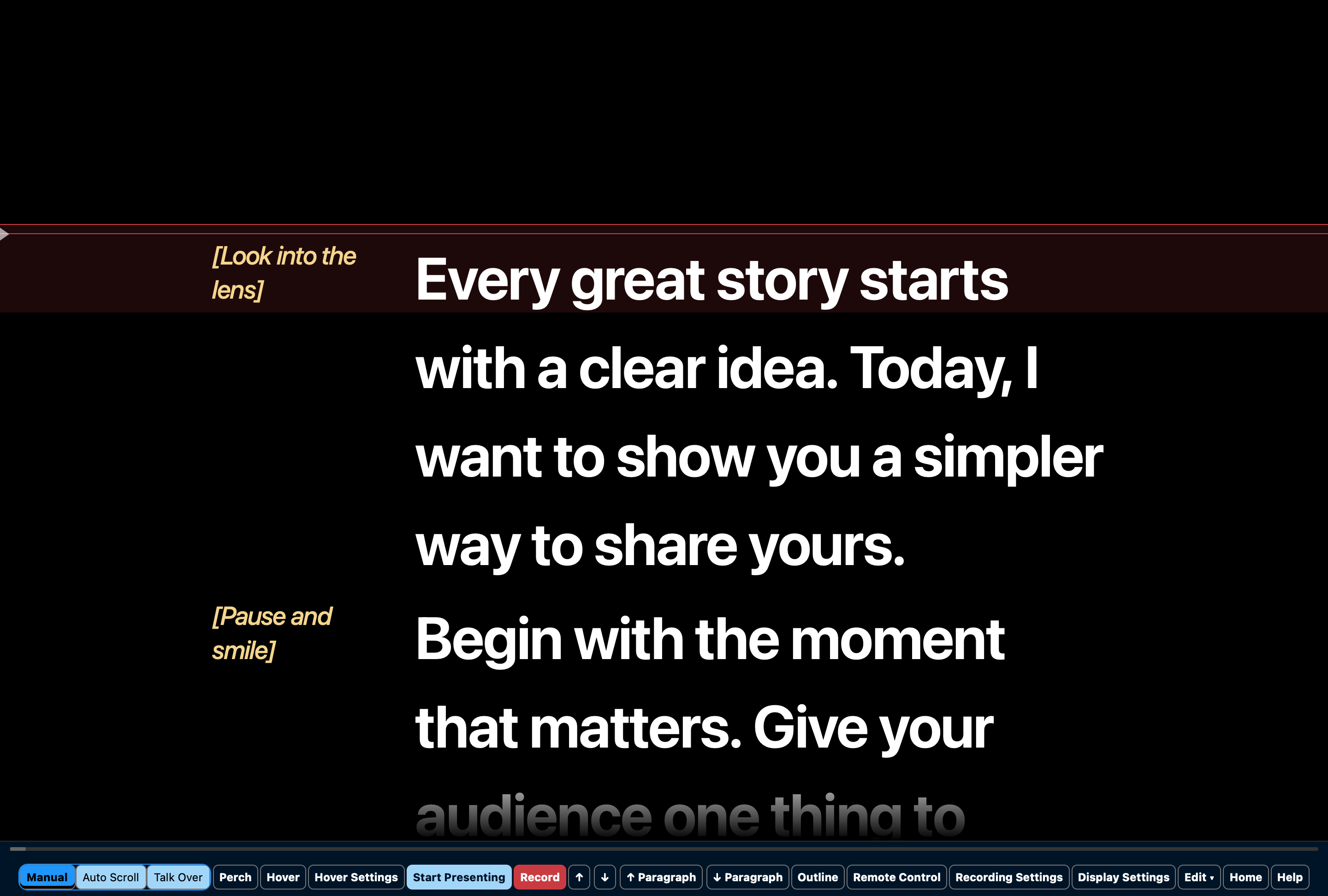
Hide directions, keep them in a left column, or set them smaller inline. You can choose their size in the editor or Display Settings, including a quick size based on your presentation text.
Set a script language and a default for future scripts, find and replace with clearer highlighting and counts, and use the Outline to jump through longer work without losing your place.
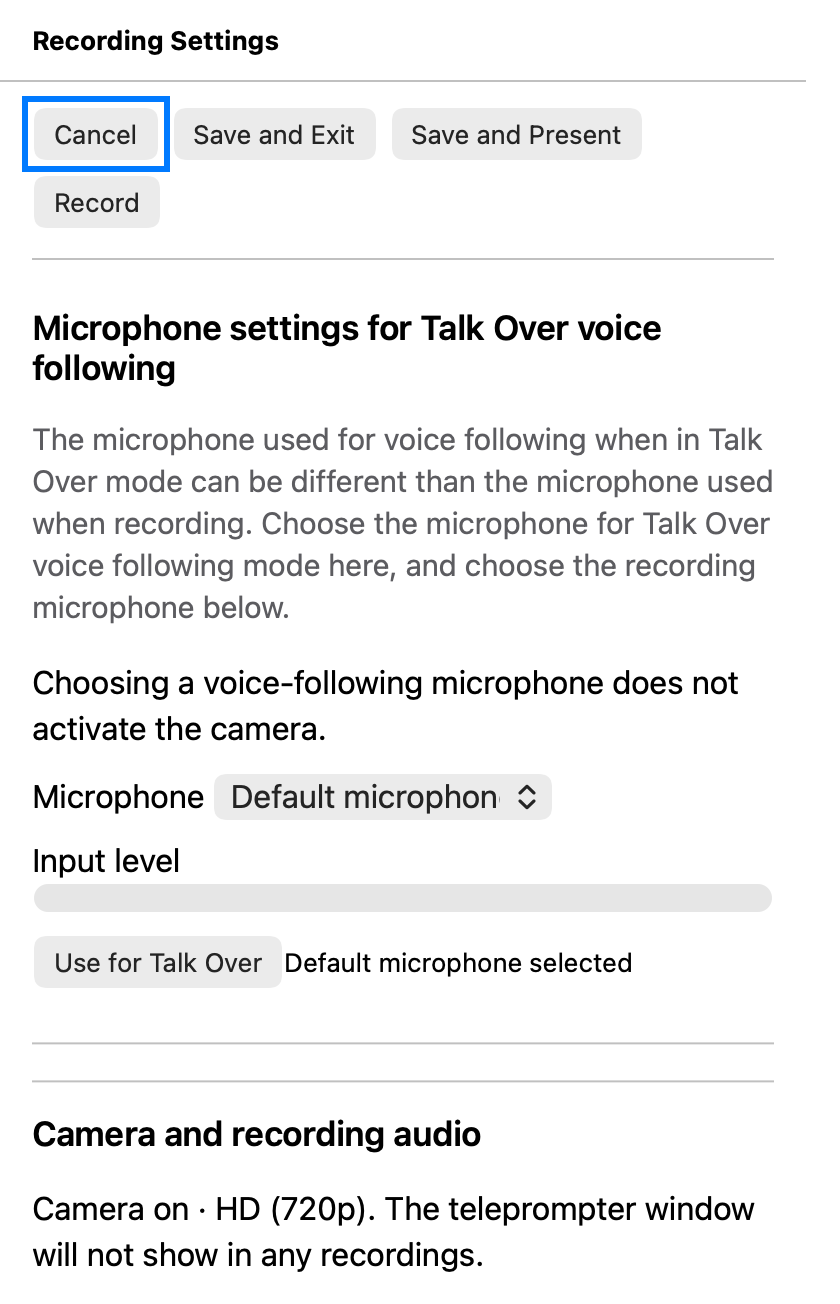
Recording Settings make it clearer when to save, exit, present, or record. Your saved device choices and previews stay ready when you close and reopen settings.
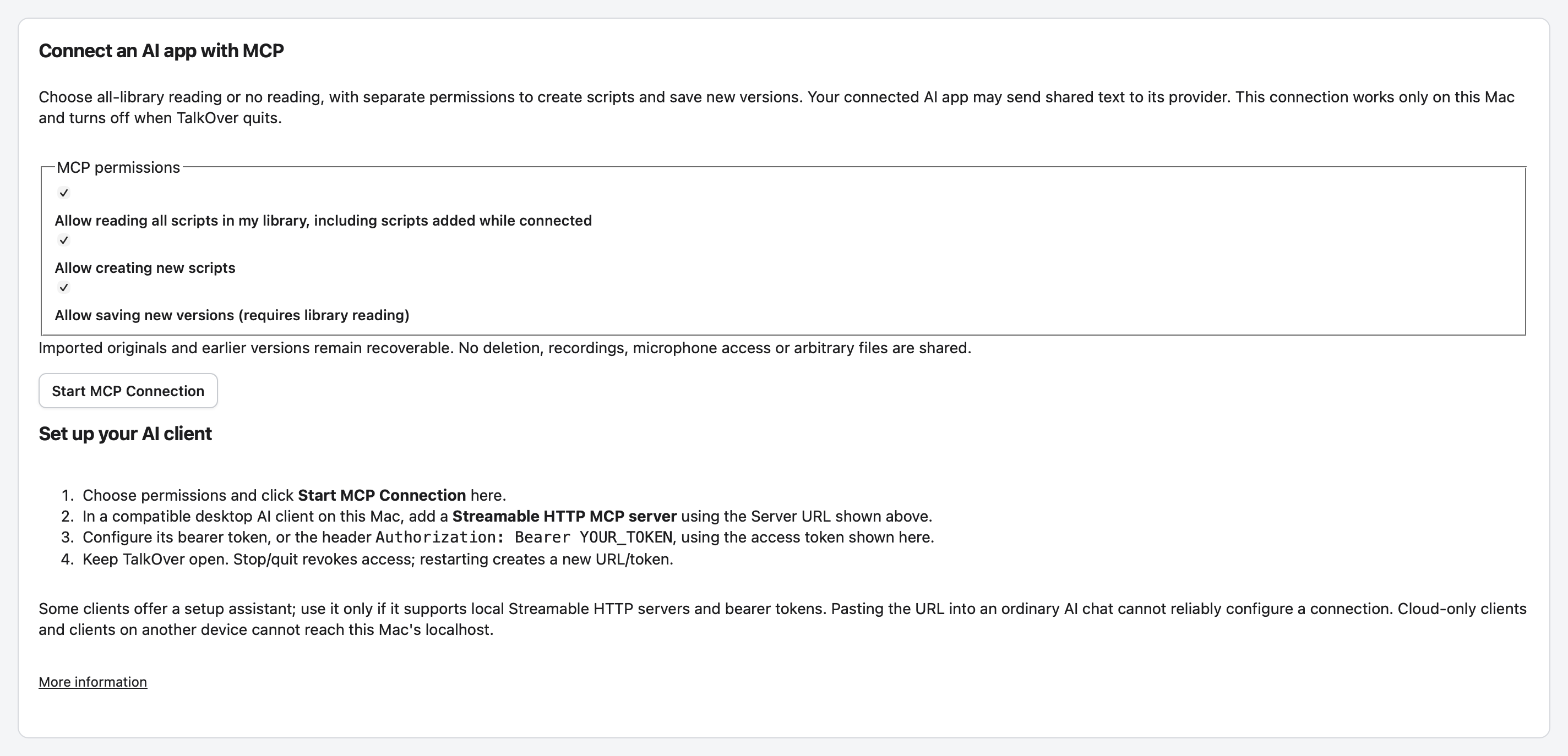
An optional local MCP connection lets you choose whether a compatible tool can read no scripts or your library, with separate permissions for creating scripts and new versions.
Updated How To and What’s New sections make everyday setup, presentation controls, and local display options easier to understand.
1.1.4.50 screenshots
These native source-run captures use disposable sample data. They show the released 1.1.4.50 interface, not a physical-device certification.
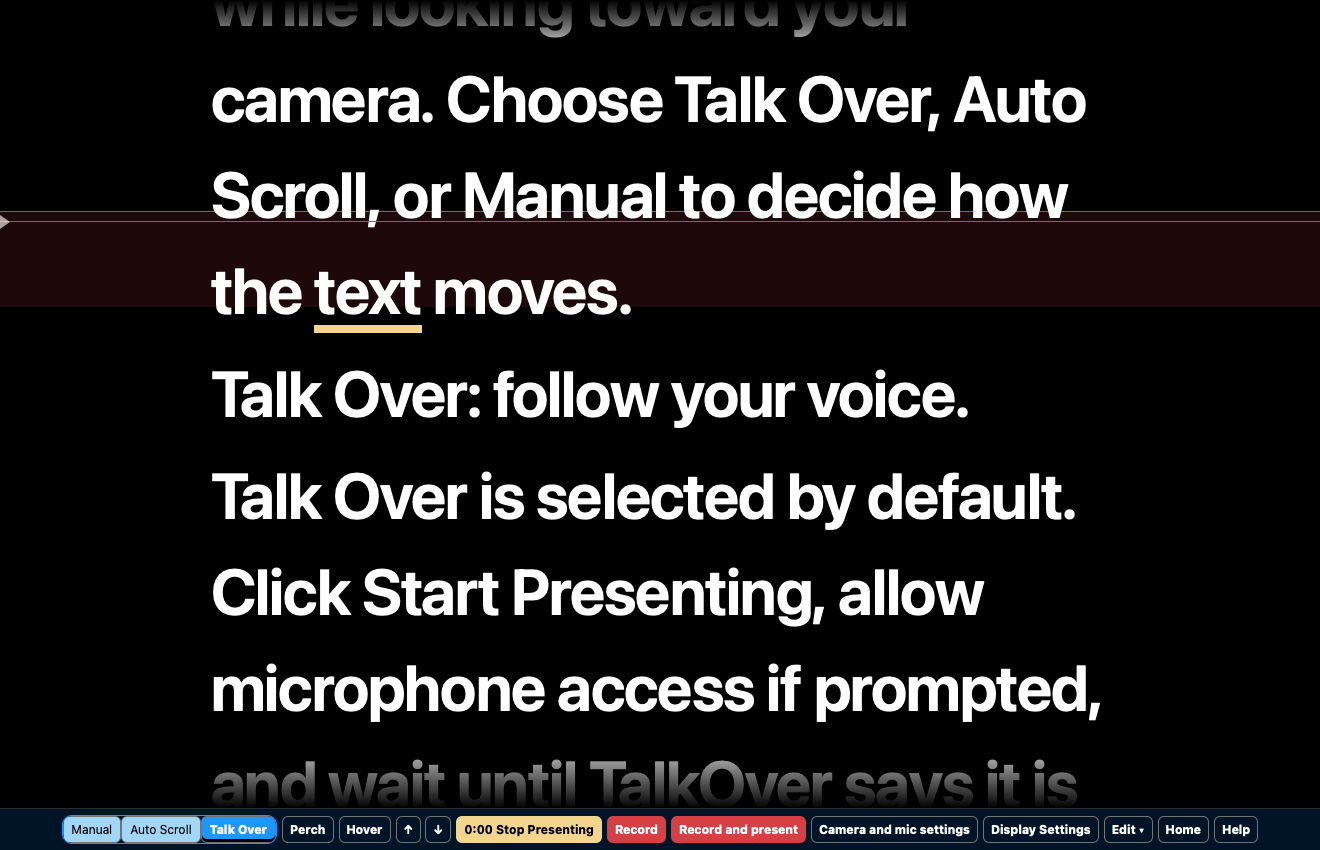
Talk Over listens locally on your Mac and moves the script to keep pace with your reading. It is designed to follow your place, not to transcribe every word perfectly, so line and paragraph controls are always there when you want to resume somewhere specific.
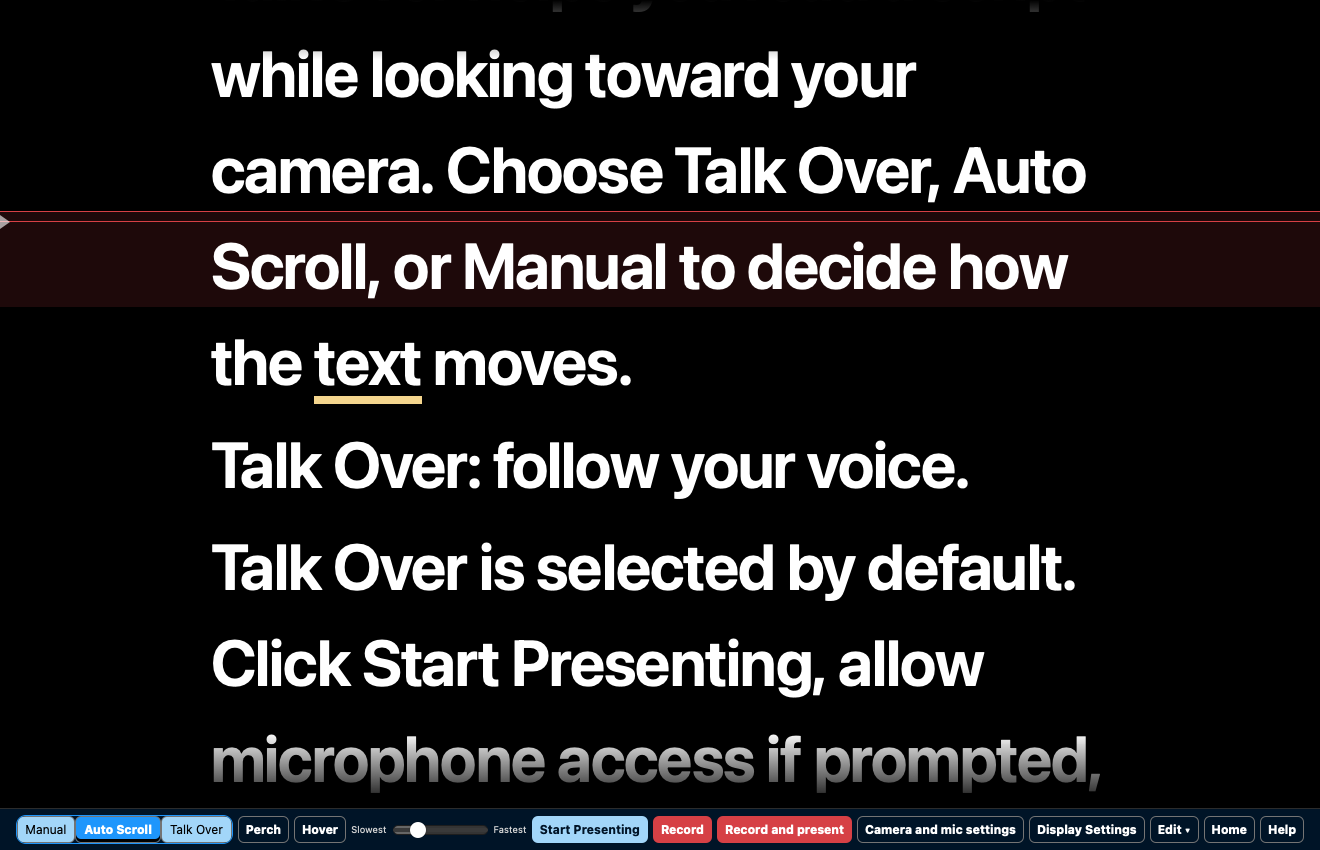
Choose Auto Scroll for a steady, adjustable pace or Manual to advance line by line. You can switch modes while working. Up and Down Arrow adjust your place, while Option plus Up Arrow and Option plus Down Arrow move by paragraph.
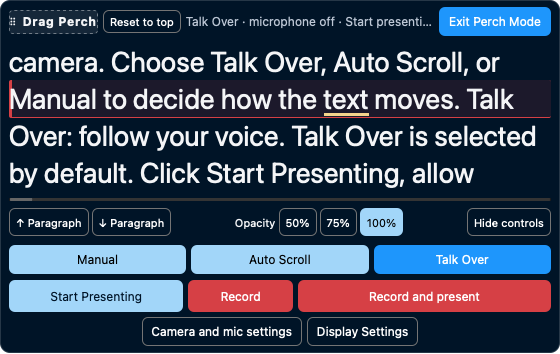
Perch is a compact, movable presenter that keeps your script close to your laptop camera or webcam. It retains your selected reading mode and position, while letting you adjust text size, width, visible lines, active line, and opacity.
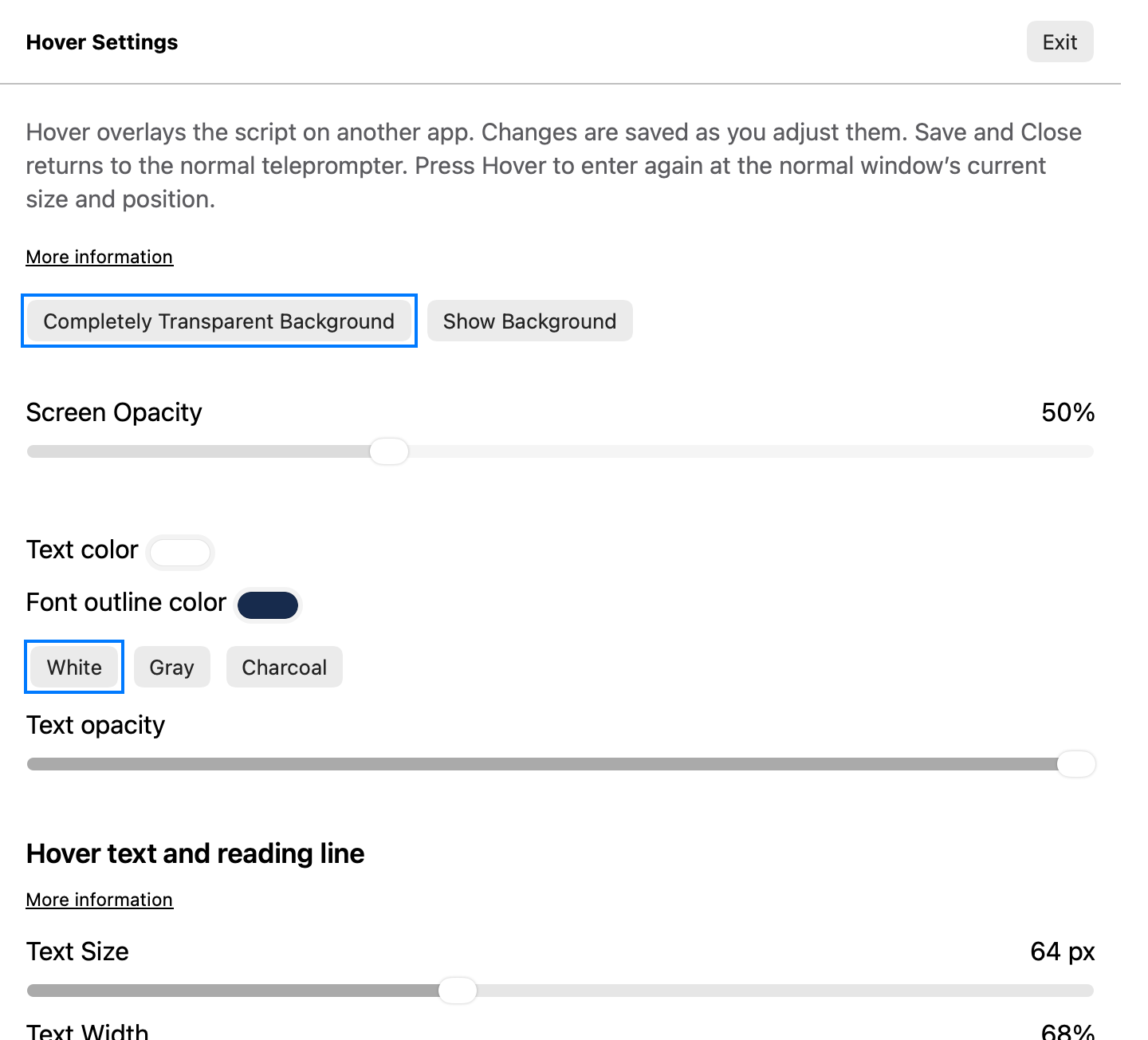
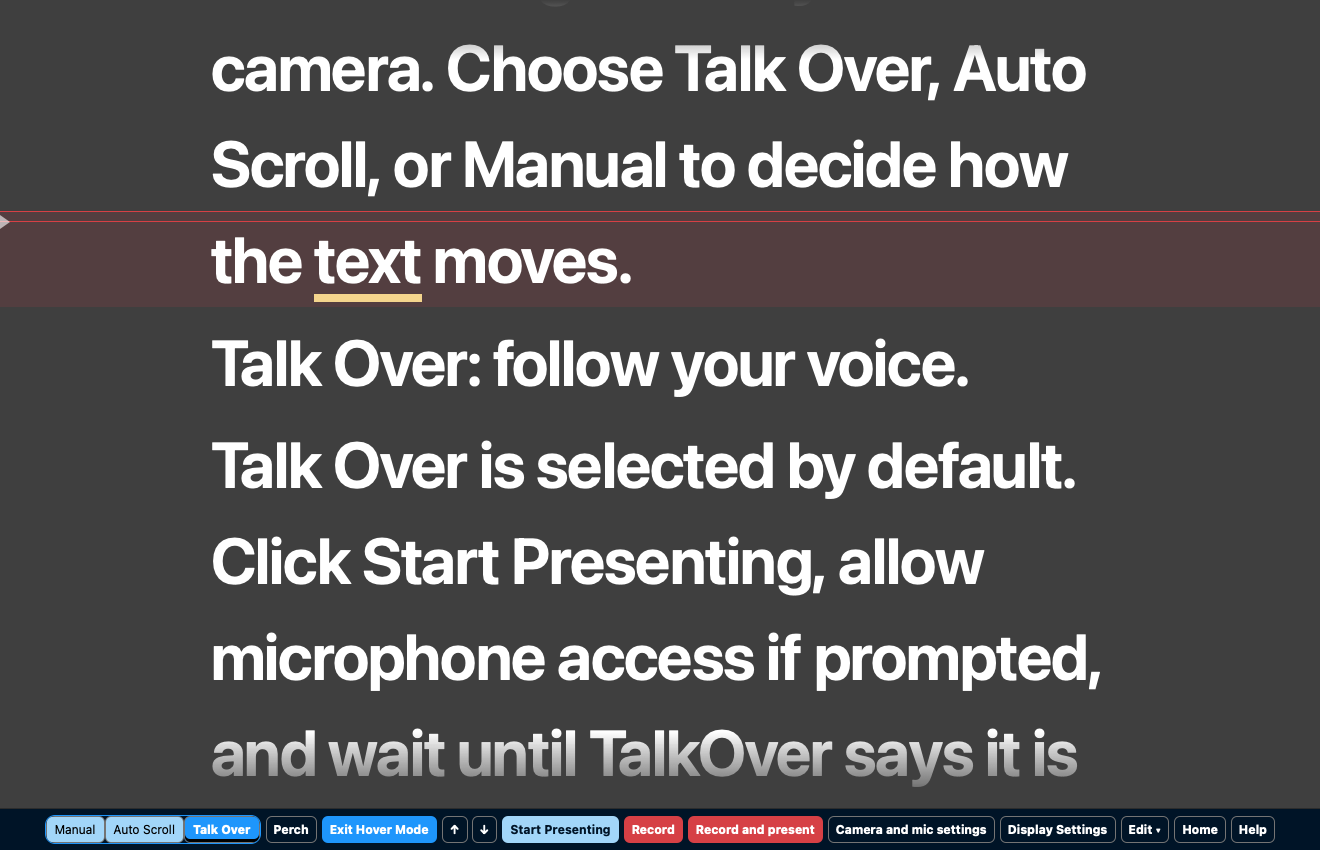
Hover places a transparent, click-through script overlay above a call, browser, slide deck, or other window. The script area lets clicks reach the app underneath while the slim control strip remains available to you.
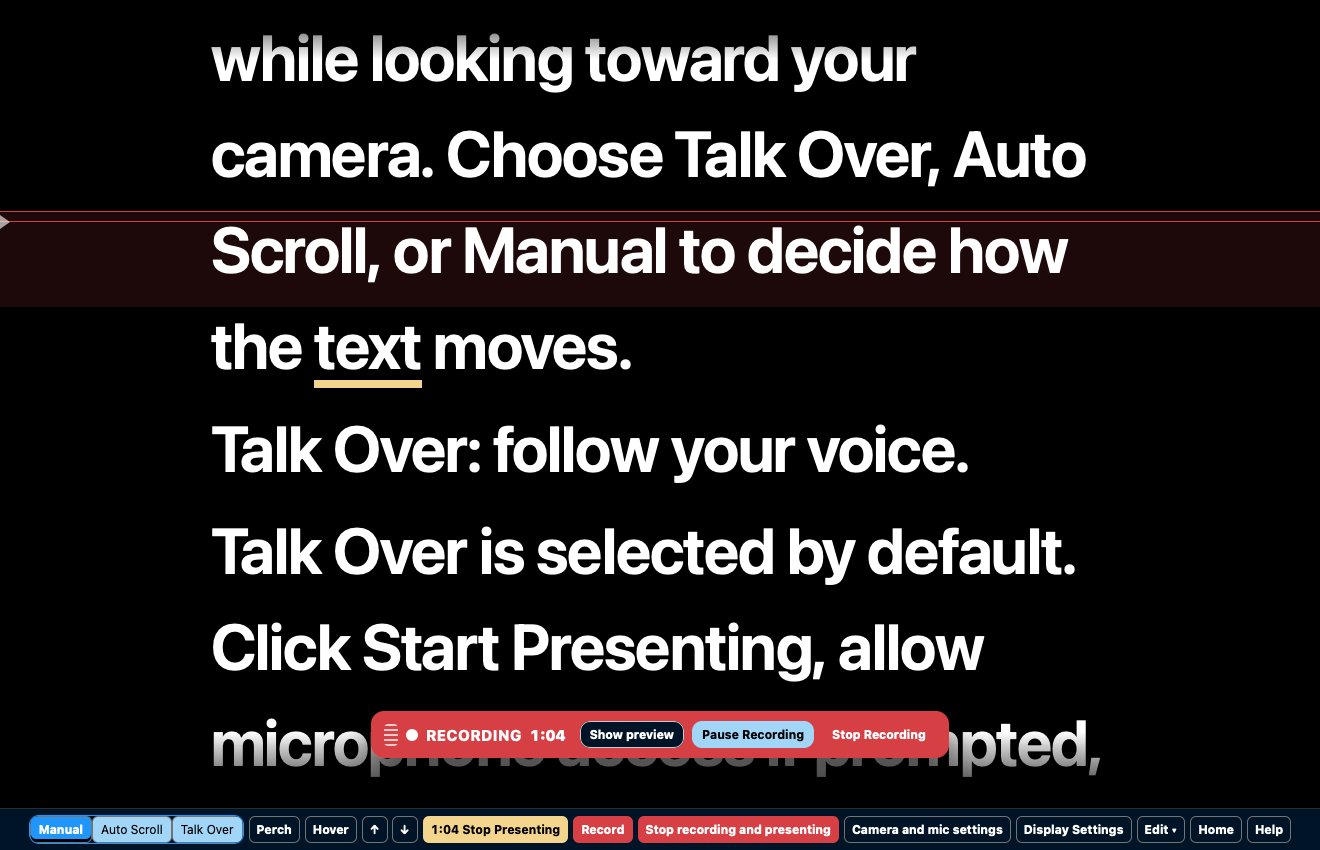
TalkOver keeps presentation and recording separate. Choose a camera and recording microphone, then start the prompt, start a recording, or start both together. The finished local recording contains your camera and microphone audio, not the script or controls.
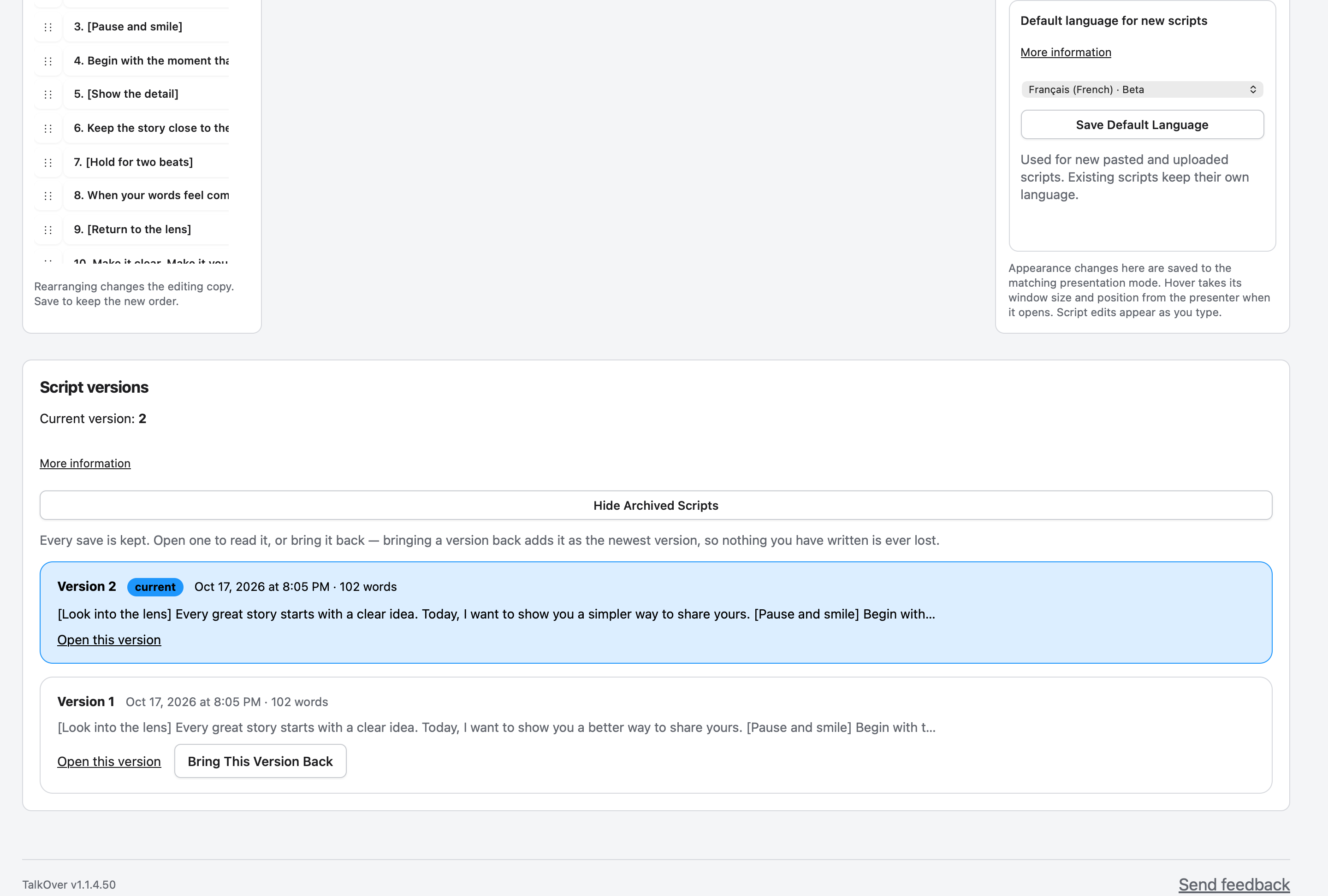
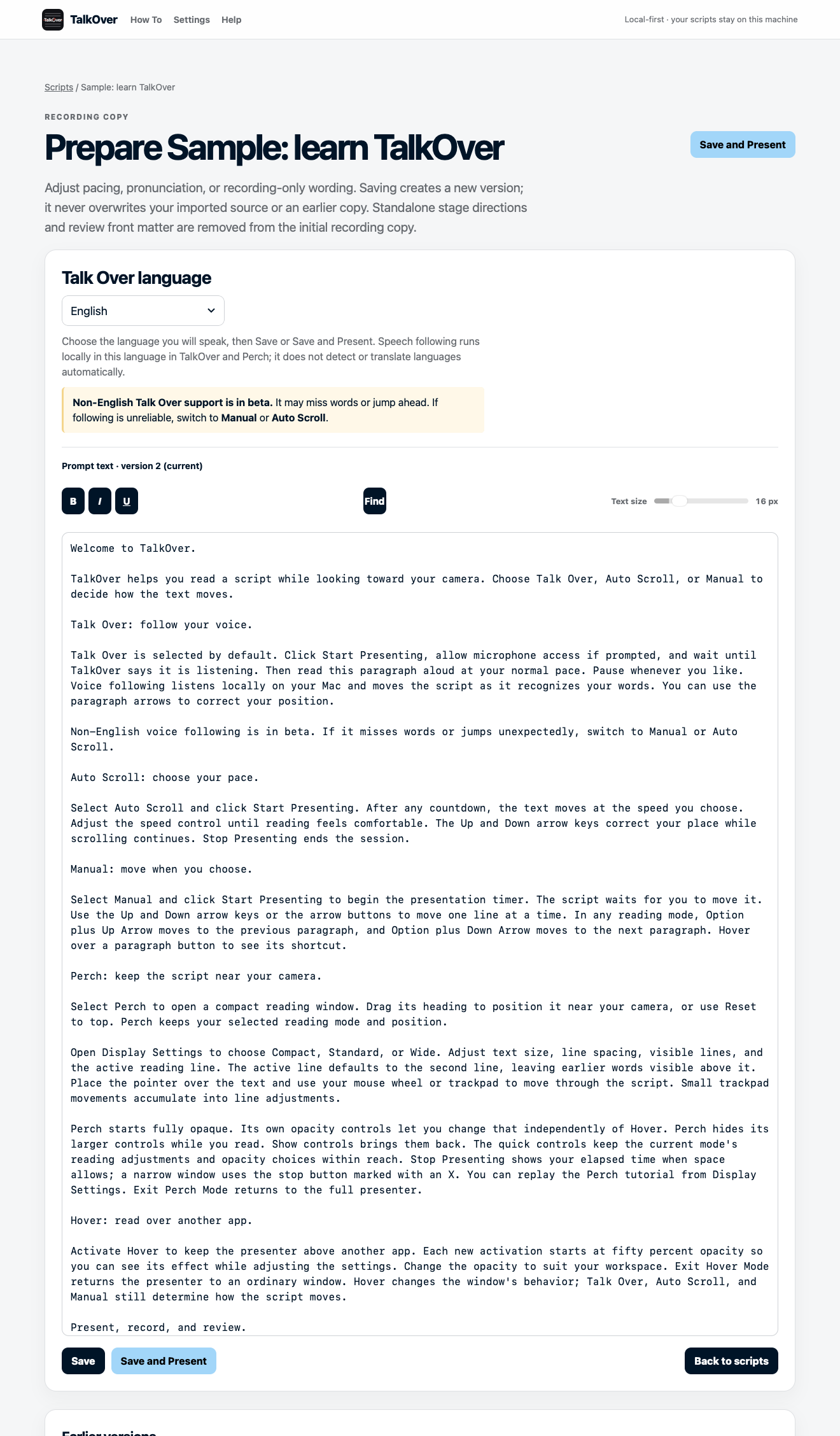
Paste text or import TXT, Markdown, RTF, or DOCX. Edit with a paragraph outline, prepare a reading copy, and keep saved versions available when you need to revisit an earlier draft.
A Full license covers two Macs. If you choose a Finder-visible cloud folder, TalkOver can use a shared script library between them. Work on one Mac at a time, let your provider finish syncing, then continue on the other. Conflicting saves are preserved as separate copies instead of silently overwriting work.
Your scripts, voice following, and recordings stay on your Mac. TalkOver uses the internet for downloads, license activation, selected language downloads, optional update checks, support submissions, and any cloud provider you deliberately choose for a shared script library.
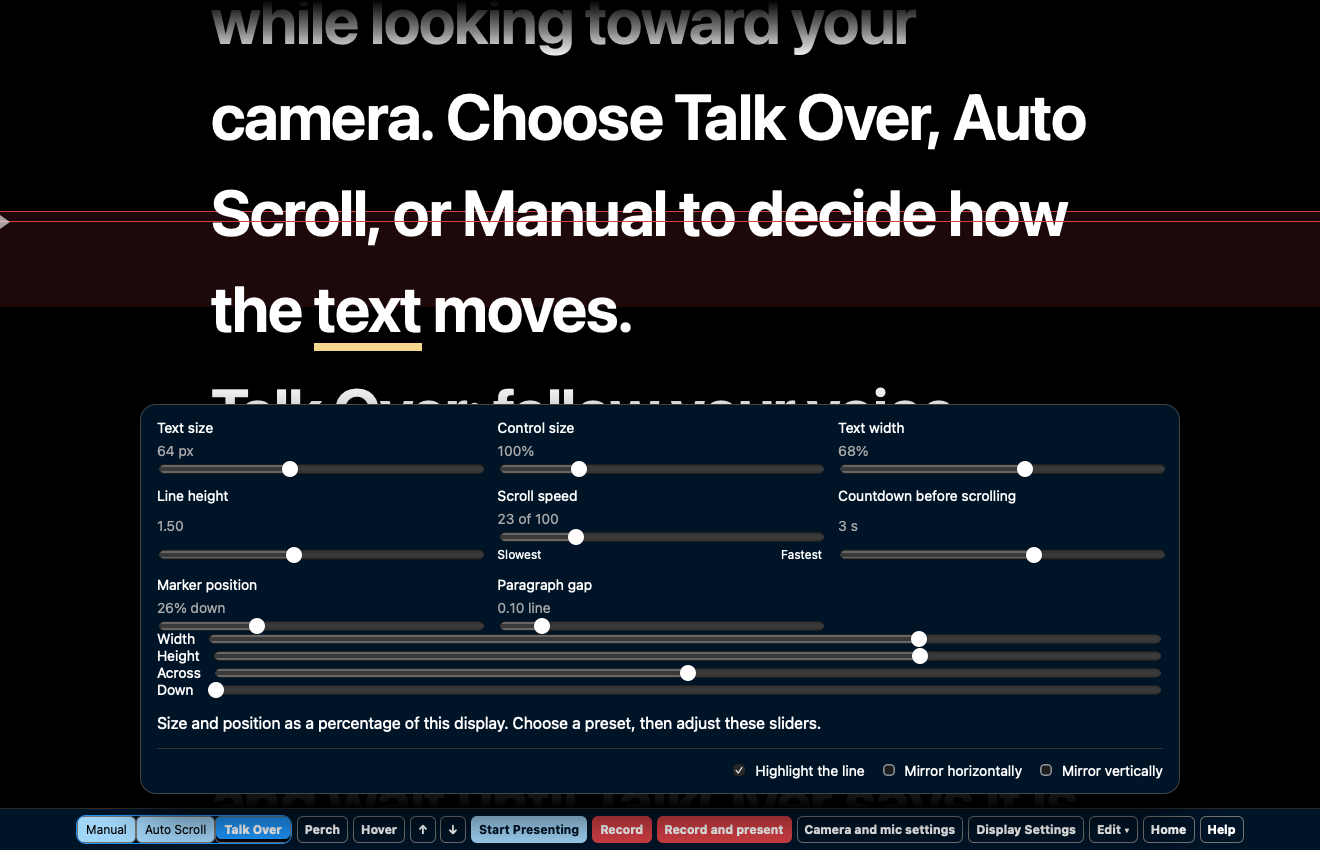
Standard is the full presenter. Hover and Perch are different screen layouts, and all three layouts support Talk Over, Auto Scroll, and Manual.
Swipe or scroll horizontally to compare all three views.
| Feature | Standard | Hover | Perch |
|---|---|---|---|
| Reading view | Full presenter window | Script over another app | Compact movable window near the camera |
| Work with another app | Switch between windows | Clicks pass through the script area | Use the desktop around Perch |
| Reading modes | Talk Over, Auto Scroll, Manual | Talk Over, Auto Scroll, Manual | Talk Over, Auto Scroll, Manual |
| Quick controls | Main toolbar and display settings | Window controls and floating remote | Collapsible controls and remote |