Installation & Use
Install it, then make it yours.
TalkOver is a native Apple Silicon Mac app with local speech recognition. Download it, move it into Applications, and start with the built-in sample script.
Before you download
- Mac
- Apple Silicon: M1 or later. Intel Macs are not supported.
- macOS
- macOS 11 Big Sur or later. macOS 13 or later is recommended.
- Storage
- Allow at least 500 MB for downloading and installing, plus space for recordings.
- Devices
- A microphone for Talk Over. A camera and microphone for recording.
- Internet
- Used for downloads, Full license activation, selected language downloads, and optional update checks. Reading and local voice following work offline.
- Trial
- 30 days from first launch. Updating does not restart the trial.
Install TalkOver
- Download the 30-day trial, or buy the Full version through Payhip.
- Open the downloaded DMG.
- Drag TalkOver onto the Applications shortcut.
- Open TalkOver from Applications. The Full edition asks for the license key delivered with purchase.
Current release: 1.1.4.50. Replacing an existing copy preserves your scripts and settings because they live outside the app bundle.
Your first script
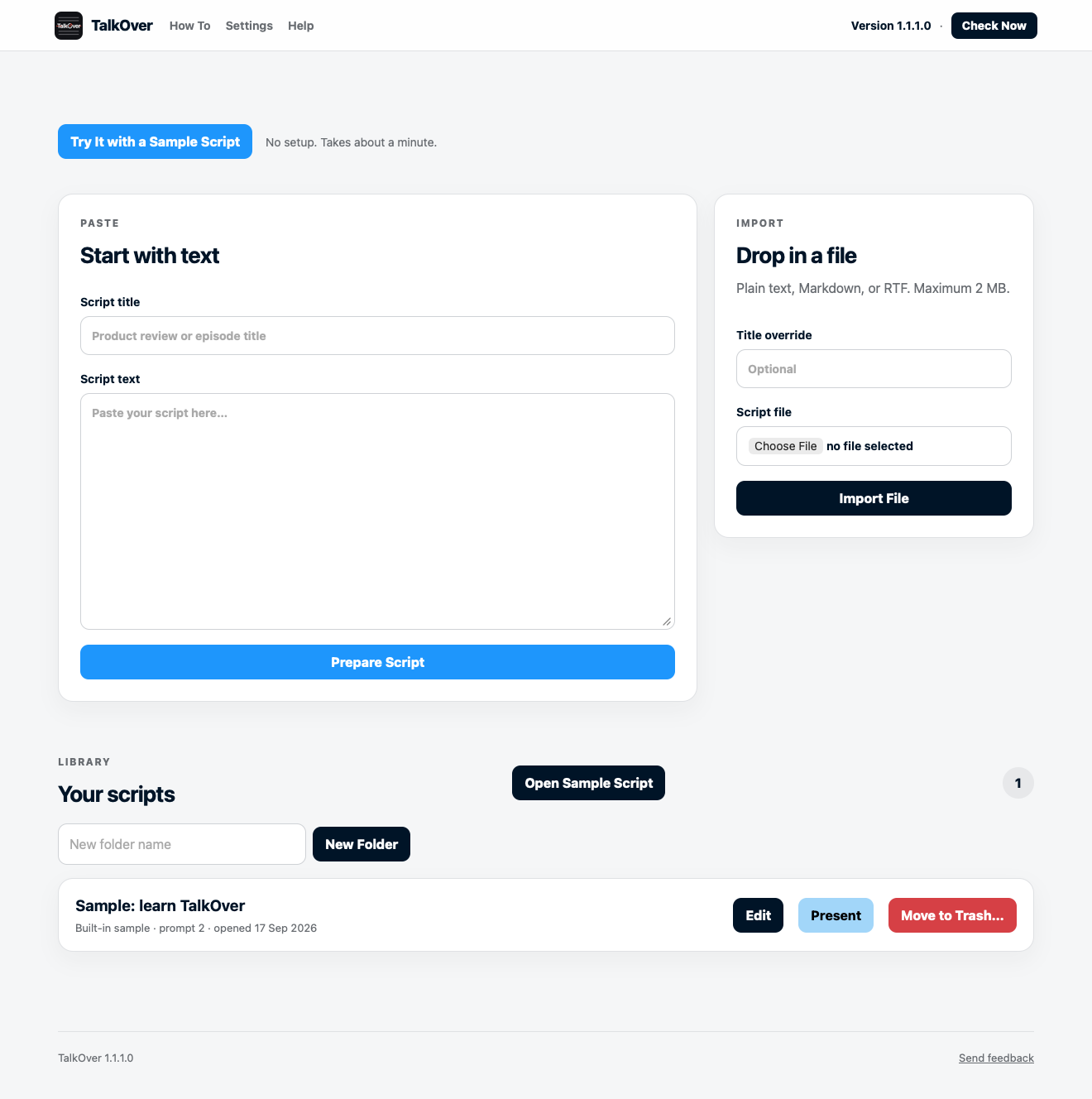
- Open the sample, paste text, or import a TXT, Markdown, RTF, or DOCX file.
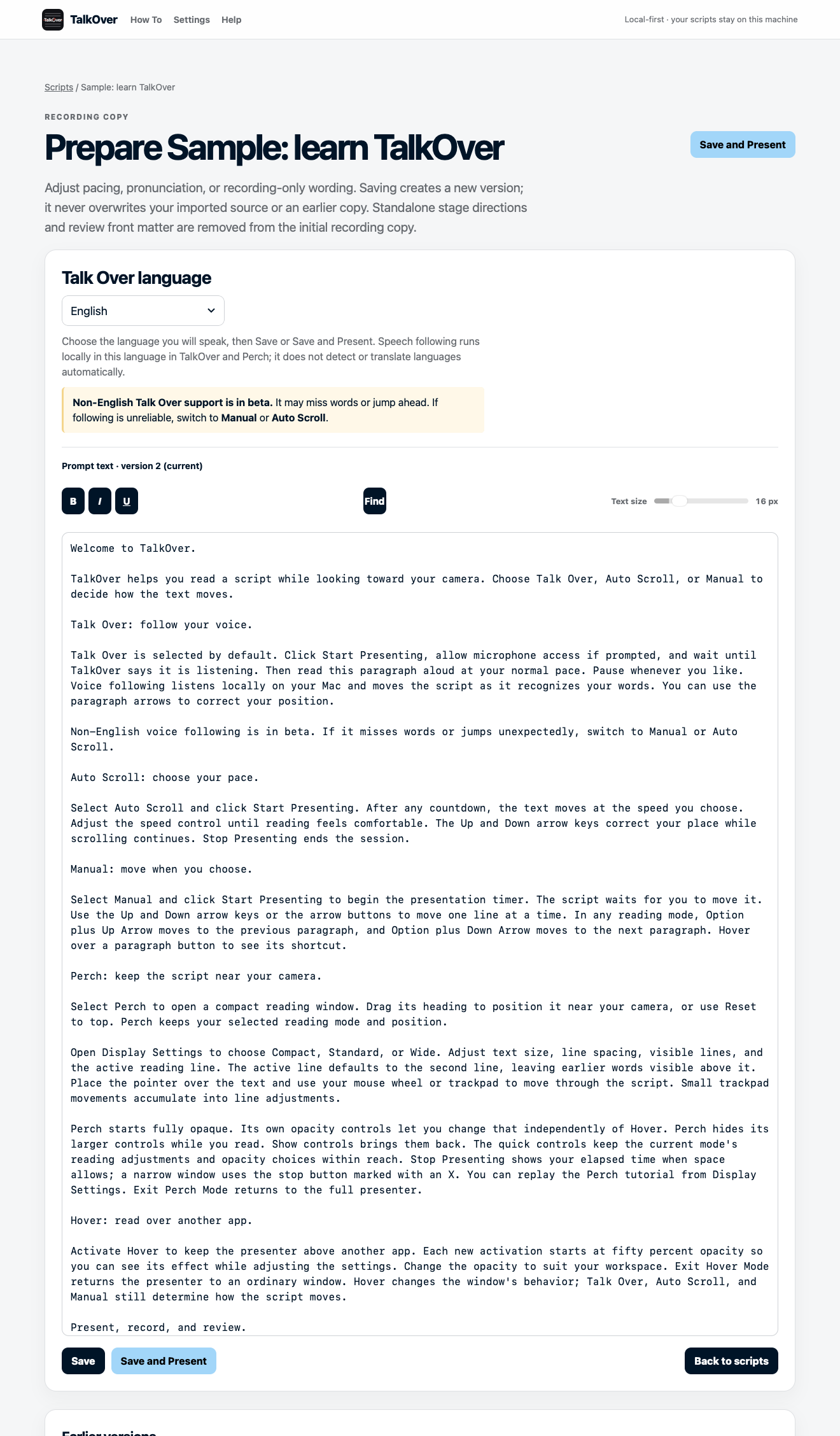
- Prepare the reading copy, select its spoken language, then choose Present.
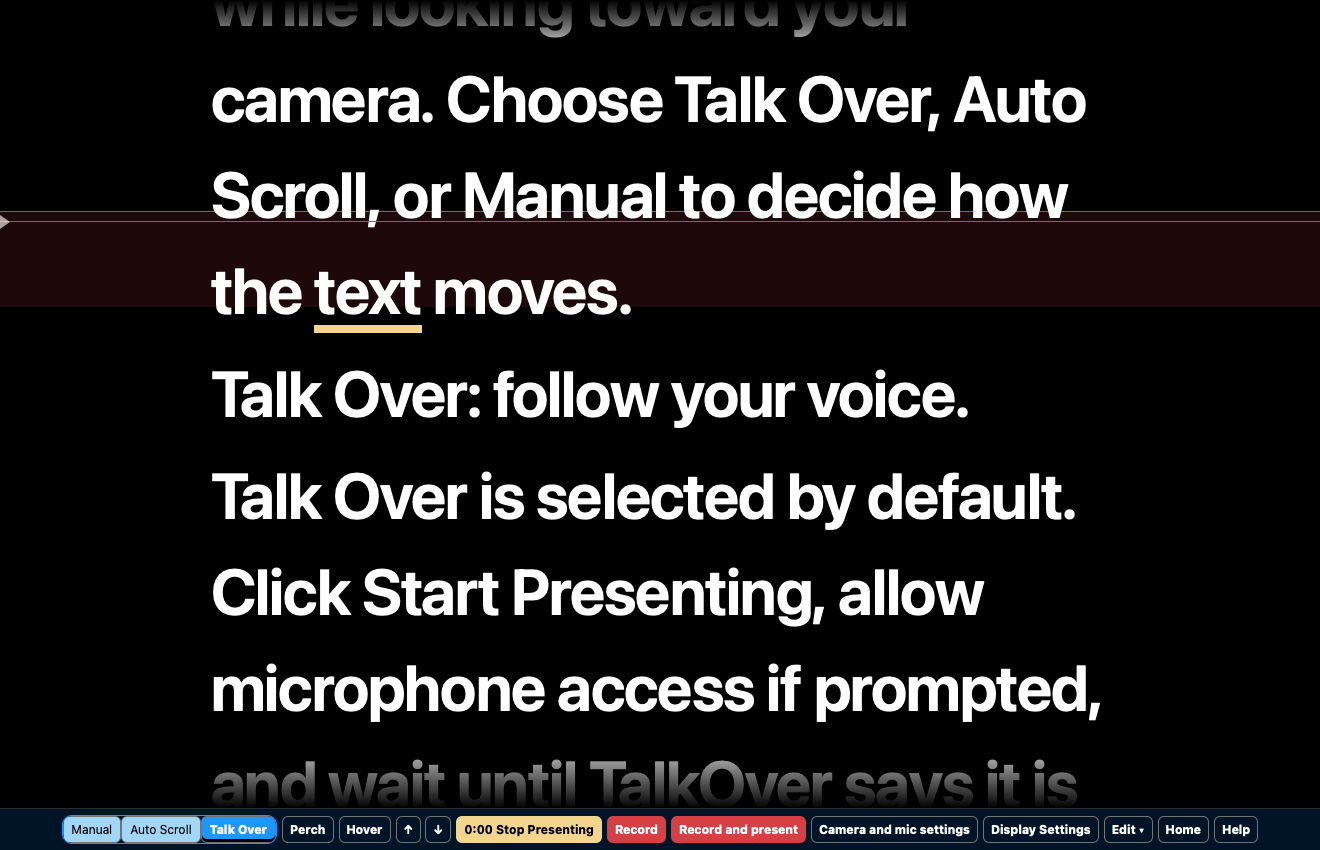
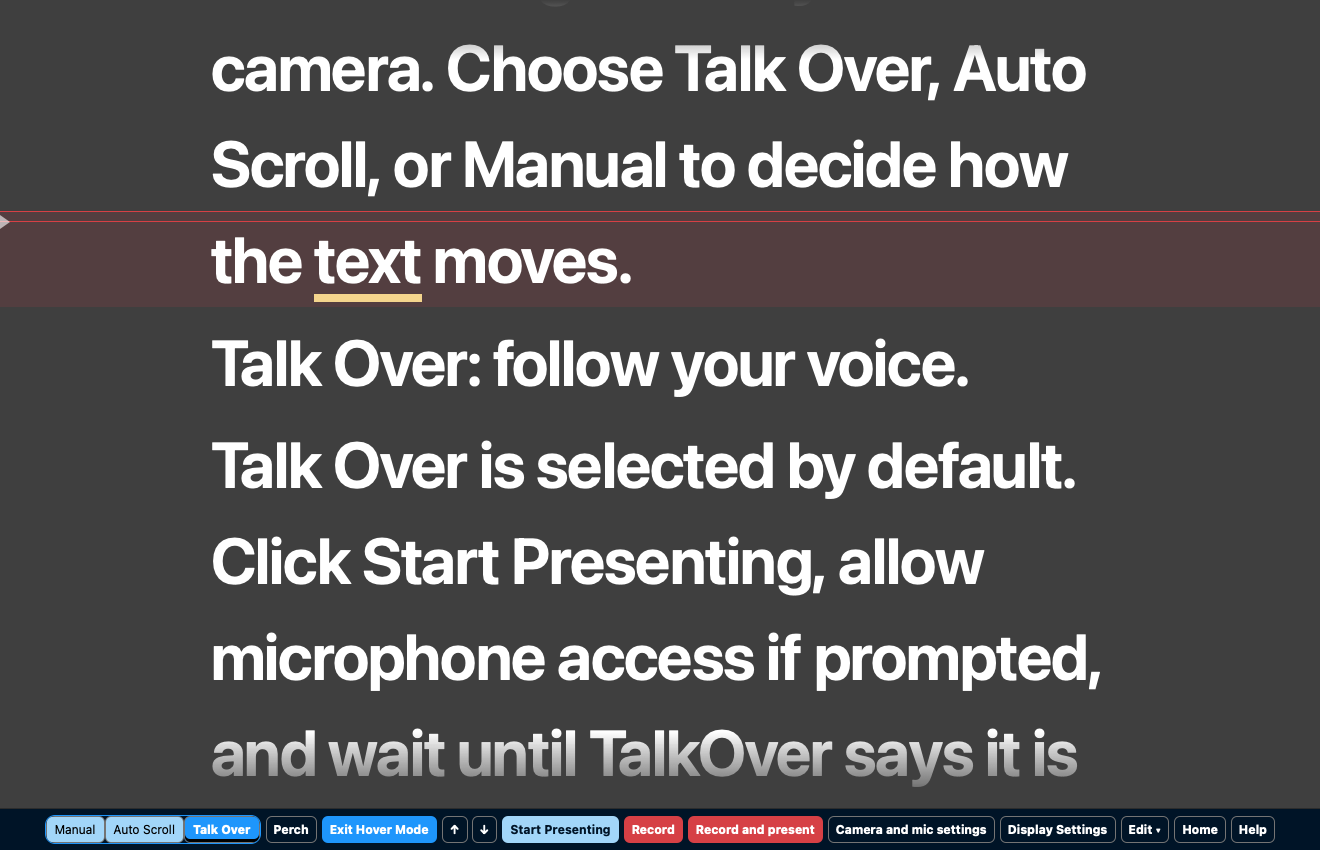
- Choose Talk Over, select a microphone, click Start Presenting, and speak naturally.
- Choose Auto Scroll for a steady pace, or Manual to move through the script yourself.
Talk Over is designed to track your place, not to transcribe every word perfectly. Use the line and paragraph controls whenever you want to resume from a specific point. Non-English voice following is beta; Auto Scroll and Manual are always available.
Perch, Hover, and recording
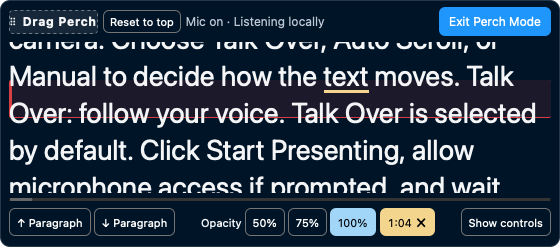
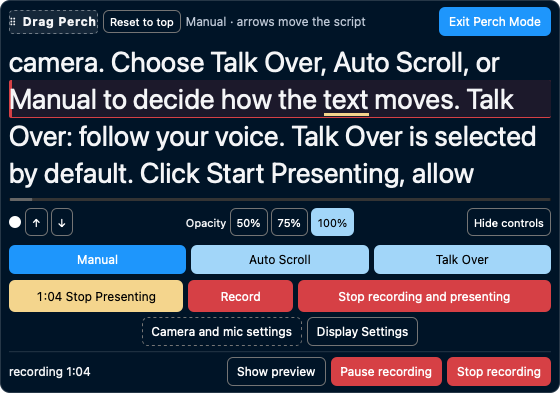
Perch is a compact presenter you can move near your camera. It retains your selected mode and position, with settings for text, visible lines, active reading line, and opacity.
Hover puts the script over another app. The script area is click-through, so you can still work in the call, browser, or slide deck beneath it.
Open Camera and Mic Settings for Recording to choose a camera and recording microphone. You can present, record, or do both. Presentation and recording stop independently; a saved video contains your camera and microphone audio, not the script or controls.
Use a second Mac
A Full license covers two Macs. TalkOver keeps scripts local by default. To continue with the same scripts on a second Mac, select a Finder-visible cloud folder and open the shared TalkOver library on the other Mac. Save and close on one Mac, let the provider finish syncing, then continue on the other. This is not live co-editing; conflicting saves are retained as separate copies.
Install an update
In Settings, choose to check manually or when TalkOver launches. When an update is available, save your work, quit TalkOver, download the correct Trial or Full installer, and replace TalkOver in Applications. Trial updates retain the original trial expiry; Full updates retain your activated edition.
Inside the app
Get to know the controls.