How it works
Install it, then make it yours.
Download TalkOver, drag it to Applications, and start a script. No account, no separate voice download.
Before you download
- Mac
- Apple Silicon only — M1, M2, M3, M4 or later. Intel Macs aren't supported.
- macOS
- macOS 11 Big Sur or later. macOS 13+ recommended.
- Space
- About 250 MB free. Download is 63 MB; installed it's about 81 MB.
- Microphone
- Any built-in or external mic for voice-following. A camera only if using Camera Take.
- Internet
- Needed only to download. TalkOver works fully offline after that.
- Scripts
- Paste text, or import .txt, .md, .markdown, .rtf — up to 2 MB.
Install TalkOver
- Download the free trial or buy TalkOver.
- Double-click the downloaded file. A window opens showing the TalkOver icon and an Applications shortcut.
- Drag TalkOver onto Applications.
- Open Applications and double-click TalkOver.
The first time you open it
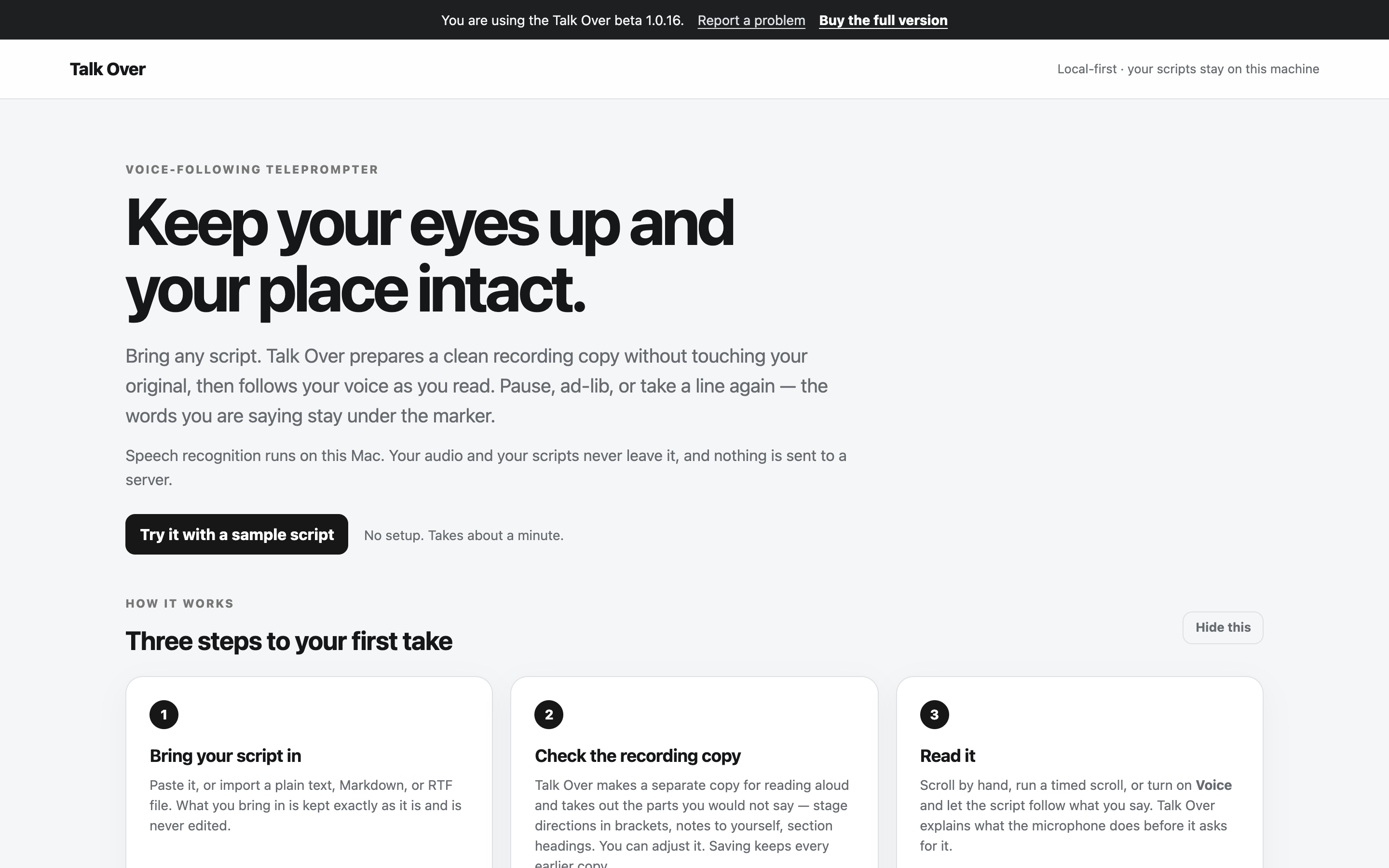
TalkOver opens in your browser. That surprises people, so: it is not a website. The app is running on your Mac and the browser is just the window it draws in. Turn your Wi-Fi off and it carries on working.
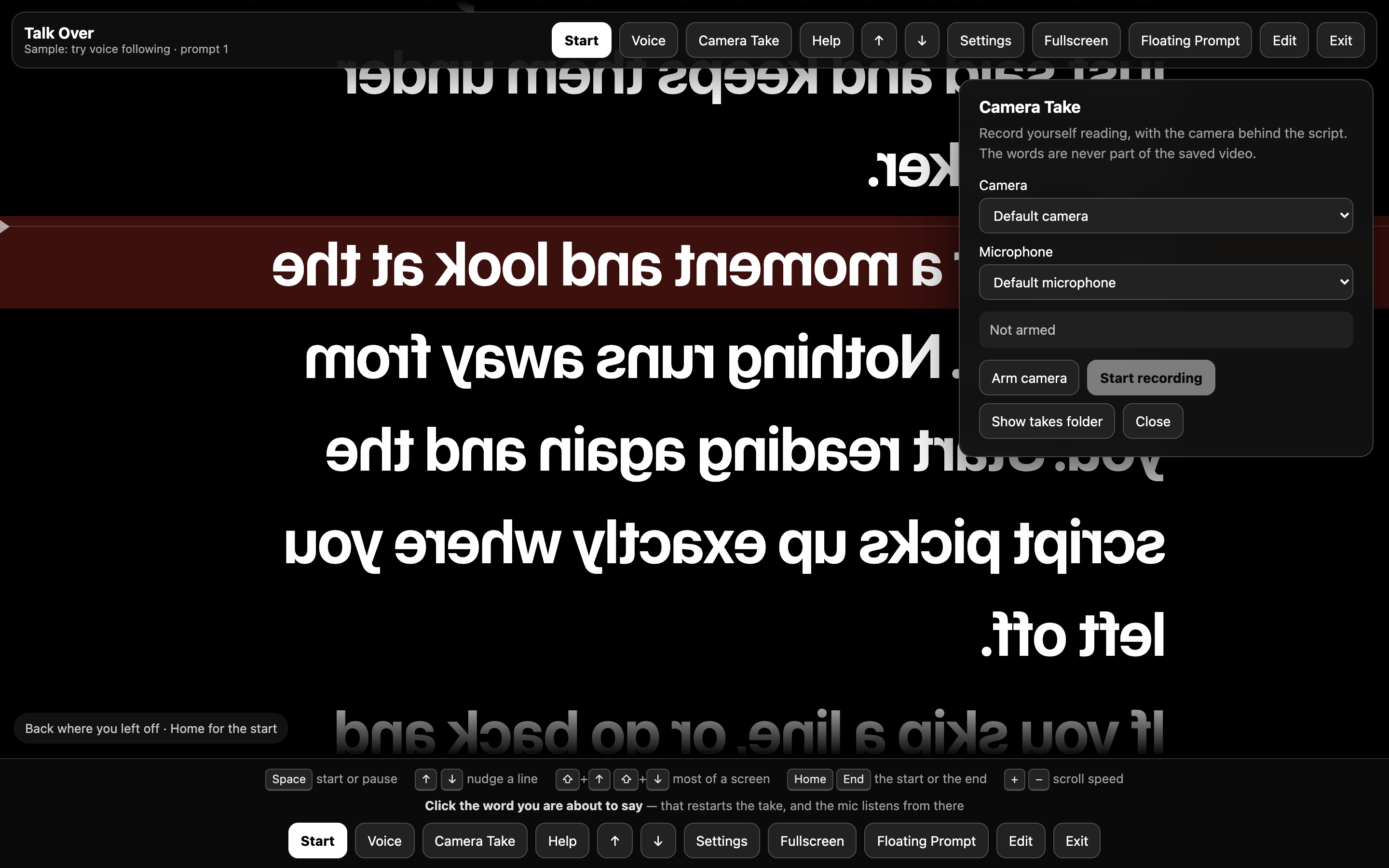
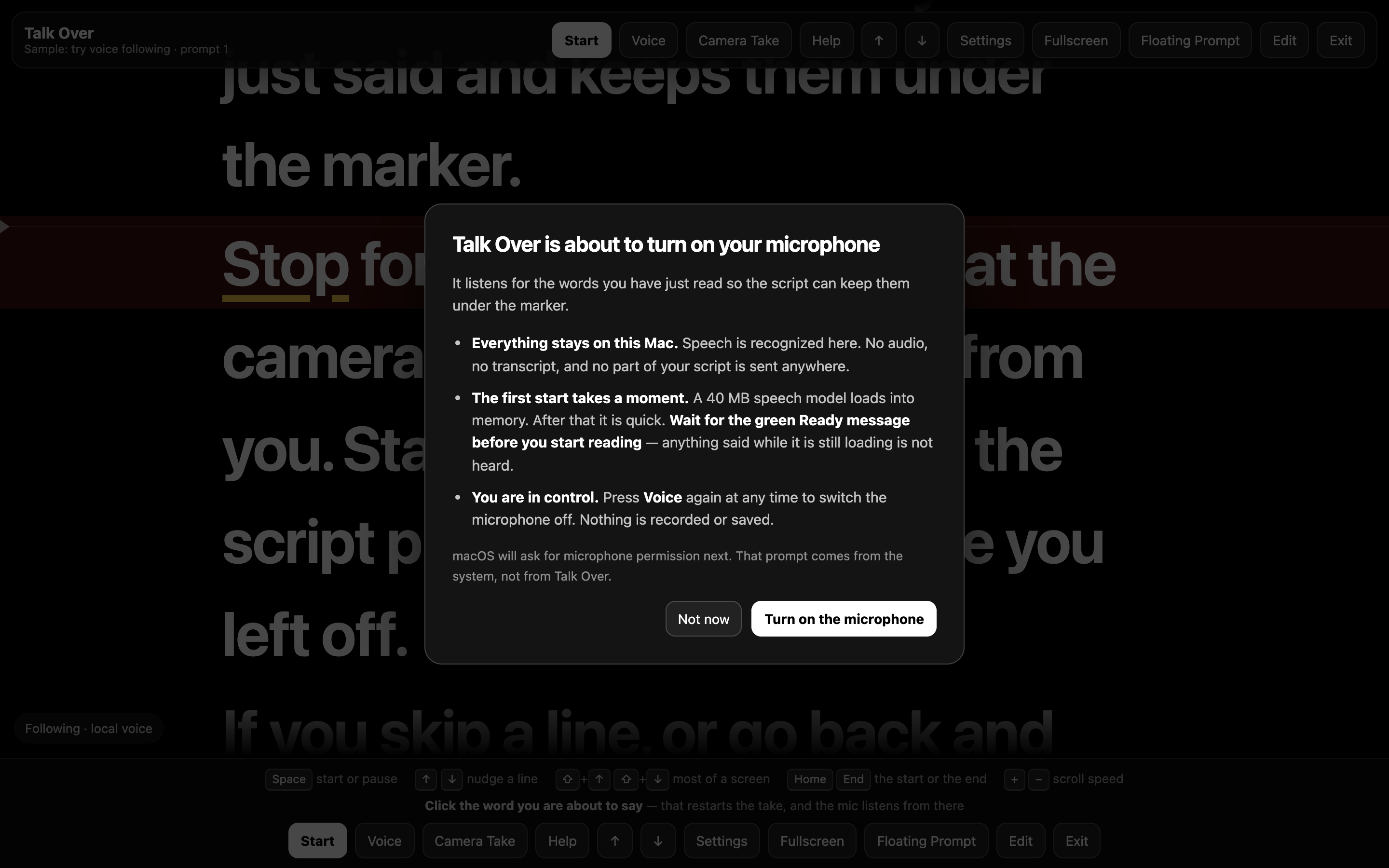
The first time you start voice-following, macOS asks for microphone permission — allow it. Camera Take separately asks for camera permission. If you clicked Don't Allow, open System Settings → Privacy & Security → Microphone, enable your browser, then reload the page.
Start using it
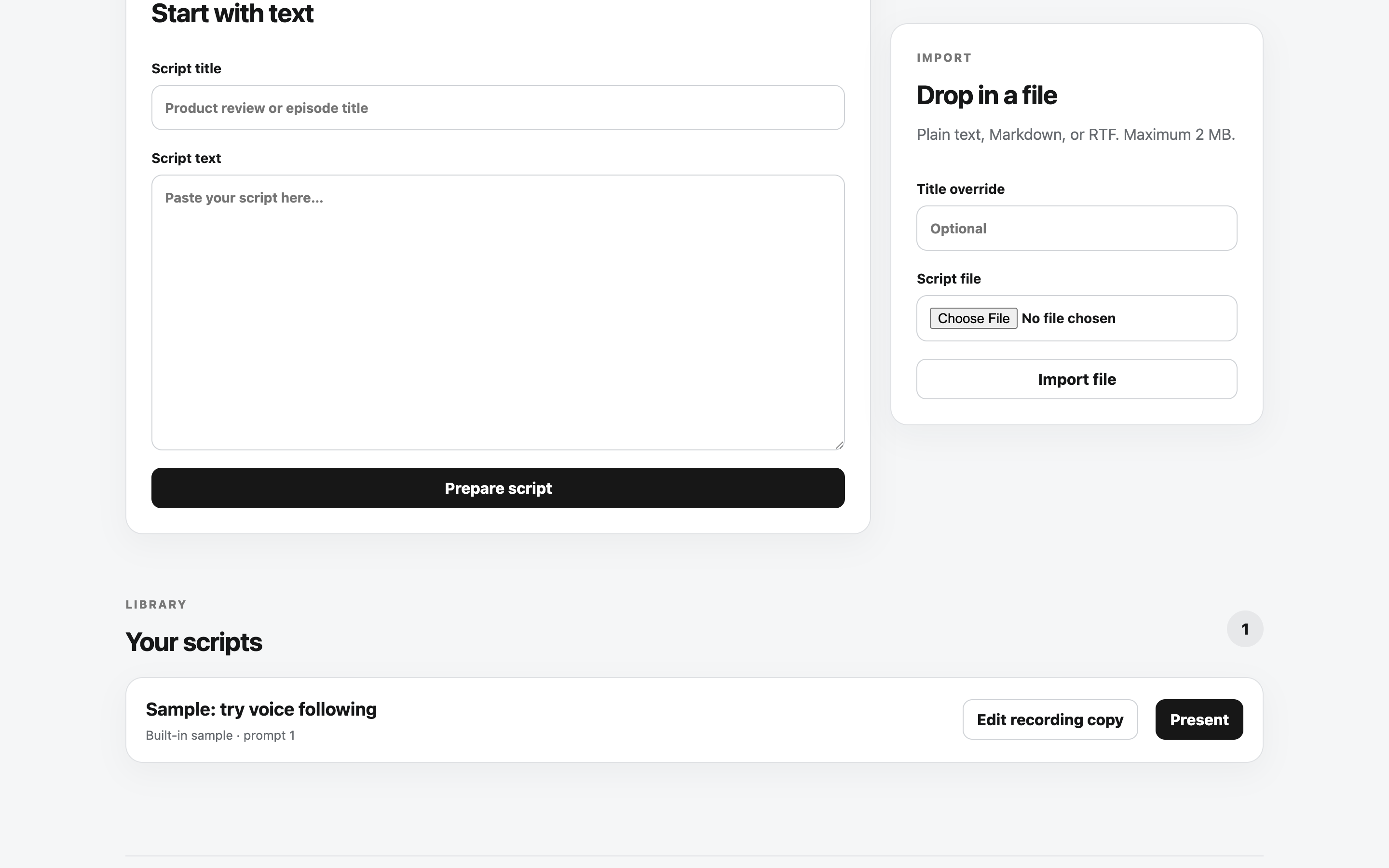
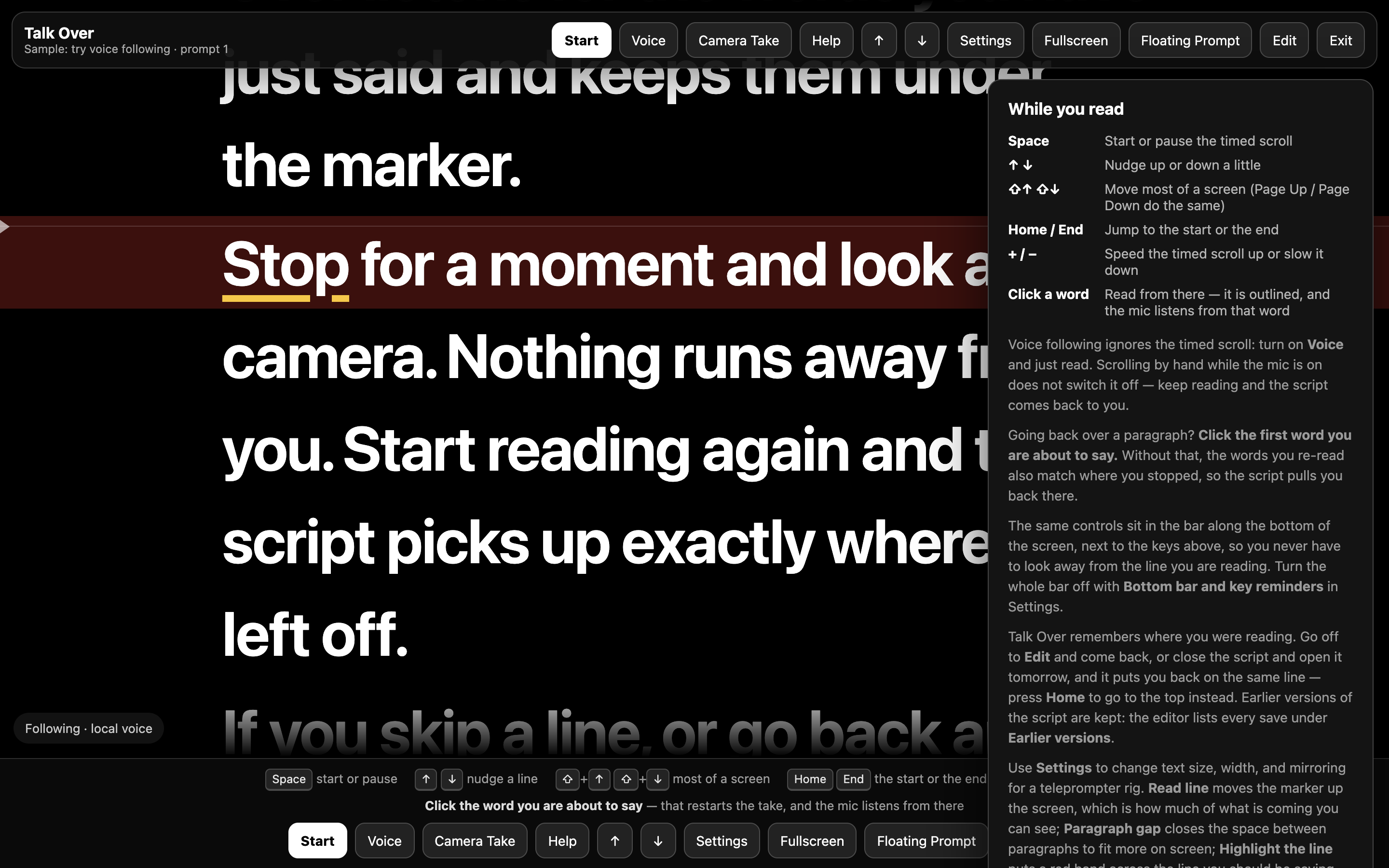
Paste a script and choose Prepare script, or drop in a file. Select Present, then click Voice to have TalkOver start listening and scroll as you talk. Re-read a line and it understands where you are; skip lines you don't want to read, too.
You can also click Start for a steady timed scroll, or use Manual to move through the script with the arrow keys. Lost your place? Click the word you want to start from — TalkOver restarts the take and listens from there.
How buying works
The trial and the paid version are two separate downloads. When you buy, you get the paid build — drag it into Applications over the trial and open it as usual.
Your scripts, settings and saved versions are already there, because they live in your own folder rather than inside the app. Updates arrive as a new Payhip download and an email when a new 1.x version is ready — no separate installer or activation involved.
Inside the app